
Extramural Research
Logistics
Grantee Research Project Results
EPA Campus Auditorium
Research Triangle Park, NC
March 28-9, 2012
MEETING INSTRUCTIONS:
Join us for a Webinar on March 28-9
Space is limited.
Please join the Environmental Protection Agency (EPA) for this informative day of science.
| Title: | Air Pollution Impact on Health: EPA STAR Research Grant Symposium |
| Dates: | Wednesday & Thursday, March 28-9, 2012 |
| Time: | Wednesday 8:00 AM – 5:15 PM EDT Thursday 9:00 AM – 12:30 PM EDT |
To register for the webinar:
Wed 3/28/2012 8:00-12:00 Registration 
Wed 3/28/2012 1:00-5:00 Registration
Thu 3/29/2012 9:00-12:30 Registration
After registering you will receive a confirmation email containing information about joining the Webinar.
To join a meeting from an email, a calendar appointment or instant message invitation
- Open the email, appointment or instant message that contains the meeting invitation.
- Click the link provided in the invitation to join the meeting.
- If prompted, click Yes, Grant or Trust to accept the download.
- If requested, enter the meeting password provided by your meeting organizer.
You will be entered into the meeting and the Attendee Control Panel and GoToMeeting Viewer Window will appear.
VoIP Best Practices
Audio quality can vary based on your audio software/hardware manufacturer as well as your operating system. When using VoIP, the following best practices are recommended:
- For optimum sound quality, a headset is recommended, preferably a USB headset for ease of use.
- If a headset is not available, a microphone and speakers are required, preferably a USB microphone for ease of use.
- If using a microphone, it should be a distance of at least 1.5 feet away from any speakers that are built into or connected to your PC.
- The use of a Webcam microphone is not recommended.
Telephone Audio Commands
Commands |
Feature |
Details |
*4 |
Help |
Provides a menu of available conference commands. |
*6 |
Mute/Unmute |
Mutes the participant’s line. Pressing the same command again will unmute the line. |
To join the audio portion of the meeting
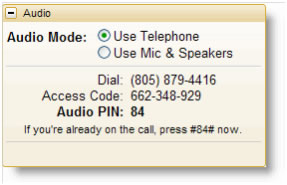
Once you have joined the online portion of the meeting, audio information is provided in the Audio pane of your Control Panel. If the organizer has given attendees a choice in how to join the audio portion of the meeting, you can select your preference in the Audio pane of your Control Panel. By default, you will be joined into the meeting unmuted.
Note: If you choose to join via VoIP, you will need speakers to listen to the meeting and a microphone to speak.
To switch audio formats during a meeting
If the organizer has given attendees a choice in how to join the audio portion of the meeting, you can switch between using VoIP (Mic & Speakers) or your telephone. In the Audio pane at Audio Mode: click either Use Telephone or Use Mic & Speakers.
Note: If you choose to join via VoIP, you will need speakers to listen to the meeting and a microphone to speak.
System Requirements
PC-based attendees
Required: Windows® 7, Vista, XP or 2003 Server
Macintosh®-based attendees
Required: Mac OS® X 10.4.11 (Tiger®) or newer
Participants wishing to connect to audio using VoIP will need a fast Internet connection, a microphone and speakers. (A USB headset is recommended.)